



.png?revision=1764341863)


How to find a lost or stolen Samsung phone?
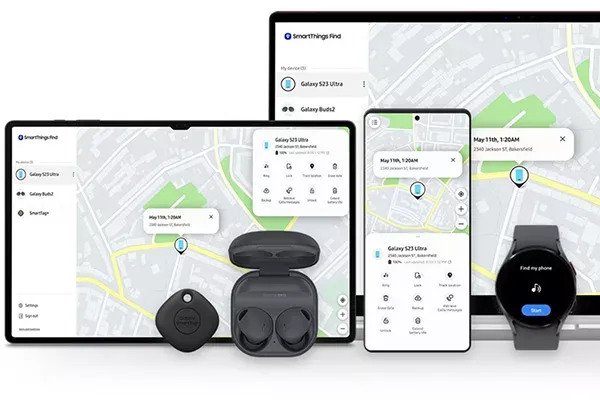
If you left your Samsung phone on a train or suspect it was stolen, we've compiled some tips on how to find your lost device. Your chances of getting your phone back are high!
What is the Samsung Find My Mobile app?
Find My Mobile is a Samsung feature that lets you remotely locate, lock, or even erase data on your lost phone. This feature is now part of the SmartThings Find platform within the Samsung SmartThings app, so you can access it from there. All Samsung mobile phones and tablets come with this handy feature ready right out of the box. 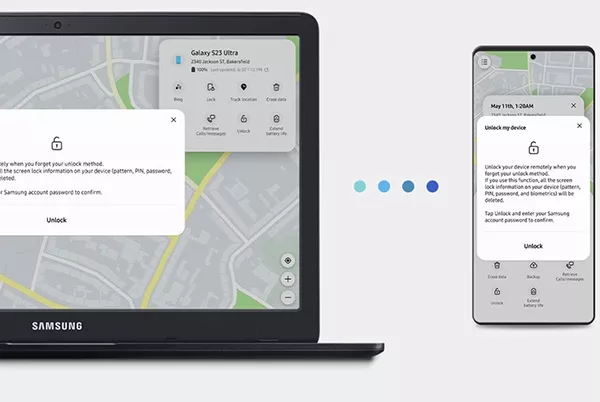
How to set up Find My Mobile on your Samsung phone?
If you set up Find My Mobile on your Samsung Galaxy phone, your chances of finding your device if it gets lost will be much higher. Follow these steps to set it up:
- - Go to 'Settings' and tap 'Security & privacy'.
- - Select the 'Find My Mobile' option and enable the 'Allow this phone to be found' option.
- - Add your existing Samsung account or create a new one.
- - After logging into your account, return to the 'Find My Mobile' page.
- - Turn Find My Mobile settings on or off. Enabling all settings would be a good idea.
- - Make sure 'Remote controls' is enabled on your phone. This allows you to control your phone remotely over the internet using your Samsung account.
How to use Samsung Find My Mobile service?
To use Samsung Find My Mobile, simply log into your Samsung account from another device. However, your lost phone needs to be connected to the internet to receive the commands. Some newer Samsung devices can even be found offline; we'll explain that shortly.
If you have a device that can log in, follow these steps:
- - Go to SmartThings Find and sign in to your Samsung account.
- - Select your lost phone from the list of Samsung devices in the left-hand menu.
- - Your phone's last known location will be displayed on the map.
- - Turn on the 'Track location' option. This will send you location updates every 15 minutes. A notification will also be sent to the tracked phone.
- - If your phone's battery is low, Find My Mobile will show your last known location. If the 'Send last location' feature is enabled, it will notify you of your location when your phone's battery drops to 20%.
What can Samsung Find My Mobile do?
With SmartThings Find, you can easily track, ring, lock, remotely erase, or back up your lost Samsung devices. If you own multiple Samsung devices, SmartThings Find lets you manage and control them all from one place.
Here's what Find My Mobile can do:
- - Ring: Makes your phone ring at maximum volume for one minute.
- - Lock: Adds a remote screen lock, suspends Samsung Pay, and prevents the phone from turning off. You can also add a message and contact information if you wish.
- - Erase data: Resetting the device to factory settings will erase all data. This action is irreversible and will terminate your access to the service.
- - Back up your data: Before deleting, you can back up your data such as messages, contacts, and applications to Samsung Cloud.
- - Extend battery life: Putting the device in low power mode allows it to stay on for longer.
- - Receive calls and messages: You can remotely view the last 50 calls and messages.
- - Set up guardians: Authorized individuals can locate your device, make it ring, or activate emergency mode.
- - Unlock: Remotely removes PIN, password, or fingerprint lock. Restores access if you've forgotten your password.
How to find a Samsung phone without an internet connection?
SmartThings Find's 'Offline Finding' feature allows you to locate your phone even when it's not connected to the internet. The system communicates with other Samsung devices around your phone using Bluetooth Low Energy (BLE) and creates a network.
This system also helps others because by enabling this feature, you contribute to finding other lost devices. For this to work, your phone must be turned on and you must be logged into your Samsung account.
Tracking with Google Find My Device
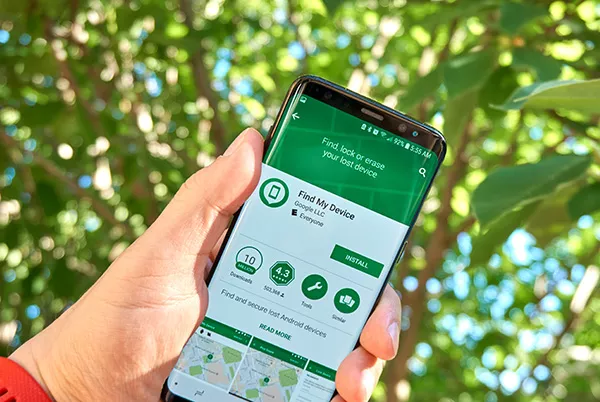
Google offers a built-in 'Find My Device' feature on Android devices, including Samsung devices . This service works through Google Play Services. You need to have a Google account and be logged in to that account when your phone is lost.
Remotely using Google's Find My Device feature:
- - You can set a new password.
- - You might steal the device.
- - You can display a message
- - You can lock the device.
- - You can completely erase the device.
To enable this feature on your Samsung phone:
- - Go to 'Settings'.
- - Tap 'Google' and select 'Security'.
- - Tap the 'Find My Device' option.
- - Move the slider to the ON position.
Technical tip: If you've added a Google account to your device, this feature is most likely already enabled.
Frequently Asked Questions
How do I lock my Samsung phone if it's been stolen?
Go to SmartThings Find and sign in to your Samsung account. Select your lost phone from the left-hand side and click 'Lock'. You can also do the same thing with Google's Find My Device service.
Can I track my stolen Samsung phone?
Yes, you can. Go to SmartThings Find and sign in to your Samsung account. Select your lost phone from the left menu, and it will show its location on a map. Google's Find My Device service can also help you with this.
How can I be sure my Samsung phone's location is correct?
You can receive location updates every 15 minutes using the 'Track Location' feature in SmartThings Find. This allows you to track your device's location more accurately.
Do you have any other questions?
Hopefully you managed to find your lost Samsung phone. If you know someone who lost their iPhone, you can help them with our "How to Find a Lost or Stolen iPhone?" guide.