



.png?revision=1764341863)


How to take a screenshot and record your screen on an iPhone?
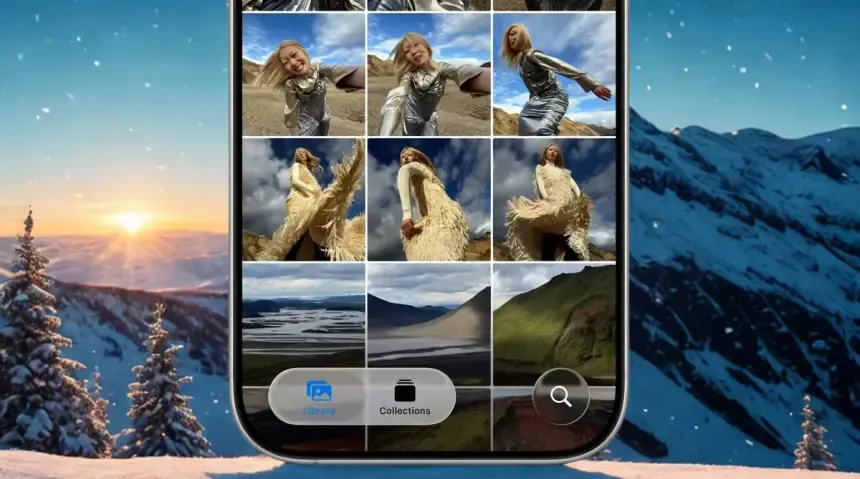
iPhones are equipped with many useful features to make our daily tasks easier. Built-in screenshot and screen recording functions are among these features. Whether you want to save an important detail, share a funny image, or remember a step-by-step recipe, screenshots and screen recordings offer quick solutions.
Now let's take a look at how to take screenshots and record screen footage on iPhones.
How to take a screenshot on an iPhone?
Taking a screenshot is quite easy. No matter which iPhone model you use, it only takes a second. The captured images are automatically saved to the Photos app, allowing you to later review, share, or add them to files.
How to take a screenshot on an iPhone with Face ID.
If we are using an iPhone with Face ID (but without a Home button):
- Press and release the right-hand side button and the left-hand volume up button simultaneously.
- A shutter sound is heard. Then a small preview image appears in the lower left corner of the screen.
- You can edit this small image by tapping on it, or close it by swiping left. The image is automatically saved to the gallery.
How to take a screenshot on an iPhone with Touch ID.
On models with a Home button (Touch ID):
- Press and release the right-hand side button and the Home button simultaneously.
- A small preview appears in the bottom left corner along with the sound of the shutter.
- We can open it by touching it or hide it by swiping left. The image is automatically saved to the Photos app.
Taking a Full-Page Screenshot on iPhone
It's also possible to capture full-page images of long content, like an article. After taking the screenshot using the steps above:
- We tap the preview image.
- By clicking the Full Page option that appears at the top of the screen, we can view the entire page.
- This image can be saved to Photos or exported as a PDF to Files . 
Taking a Screenshot with AssistiveTouch
iPhone's built-in AssistiveTouch feature allows you to take screenshots without touching the physical buttons. It's especially useful on devices where the side button doesn't work.
- We follow this path: Settings > Accessibility > Touch > AssistiveTouch .
- We activate AssistiveTouch . A small icon appears on the screen.
- We assign an icon as a "Screenshot" from the Customize Top Menu option.
- We can quickly take a screenshot by tapping the AssistiveTouch icon on the screen.
Are we looking for an even faster way?
- In the same menu, we select the Double Tap option and assign a "Screenshot".
- Now, double-tapping this icon is enough to take a screenshot. 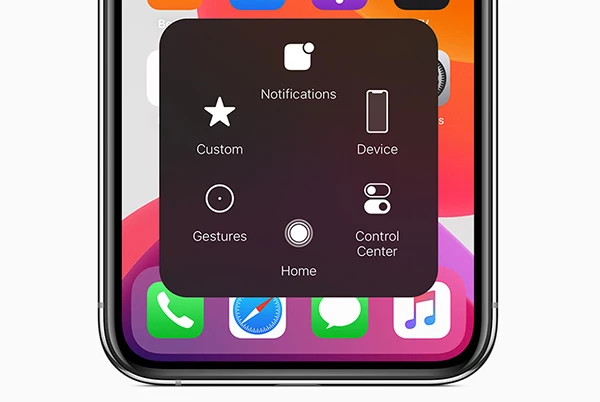
How to record your screen on an iPhone?
Some moments can't be summarized with just a screenshot. Screen recording is very useful when we want to explain a process, record the step-by-step process, or guide a friend. This feature is built-in on iPhones.
To record your screen:
- We follow the path Settings > Control Center.
- We add the Screen Recording option to the Control Center by tapping the plus icon.
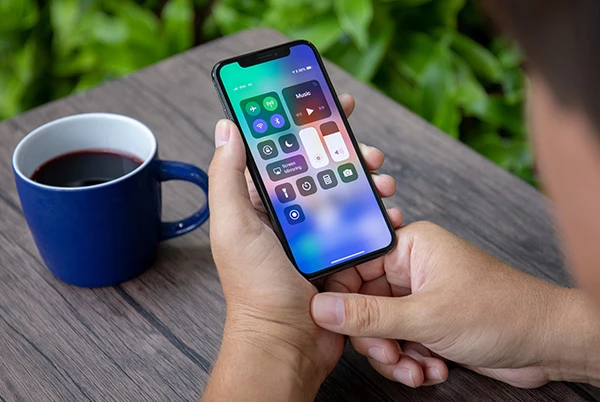
- We open Control Center by swiping down from the upper right corner of the screen.
- We tap the record button. A 3-second countdown begins.
- We can also record audio by long-pressing the button to turn on the microphone.
- To stop recording, open Control Center again and tap the same button, or click the red bar at the top of the screen and select Stop.
The photos are saved to the Photos app, from where you can view, edit, or share them.
Frequently Asked Questions
Why can't I see the screen recording button?
This button is invisible unless you add it to Control Center. We need to add the “Screen Recording” feature via Settings > Control Center.
What is the screen recording duration on iPhone?
We can record for an average of up to 3 hours. However, this time varies depending on the device's storage space and battery level. If you plan on recording for a long time, it's important to check the storage space and battery status beforehand. Ideally, it's best to record while the device is charging.
Can we record audio while recording the screen?
Yes. We can turn on the microphone by long-pressing the record button. This allows us to record videos with voice narration.