



.png?revision=1764341863)


How to create an iCloud account?

Apple's iCloud cloud storage service is easy to use and packed with useful features. While it lags behind Google in terms of free storage (15 GB vs. 5 GB), having some extra cloud storage is always an advantage. If you want to step into the Apple ecosystem, we've prepared a comprehensive guide to help you create an iCloud account via iPhone , Mac, PC, or the web. This guide will be especially useful if you're using one of the best Chromebook models with limited internal storage.
What is iCloud?
Apple's iCloud service is a cloud storage and data synchronization tool integrated with iOS. It allows you to securely store photos, videos, documents, contacts, and more in the cloud. It also lets you seamlessly sync data across all your Apple devices. This means you can access your files, photos, and other information from anywhere as long as you have an internet connection. iCloud also offers features such as file sharing, collaborative work on documents, and the Find My iPhone tool to locate lost or stolen devices. If you own an Apple device or are considering buying one, it's worthwhile to familiarize yourself with this tool. However, you can also disable iCloud services if you don't need them.
How to create an iCloud account on an iPhone or iPad?
Creating a new iCloud account is the same as creating an Apple ID because the two are linked. You may already have an Apple ID account. If so, sign in with that Apple ID in the Settings app or on the iCloud website. You can also sign out of your existing account to use a different email address. To create a new Apple ID on your iPhone or iPad , follow these steps:
1. Open the App Store app from the home screen.
2. Tap the Login button.
3. Tap Create a new Apple ID . 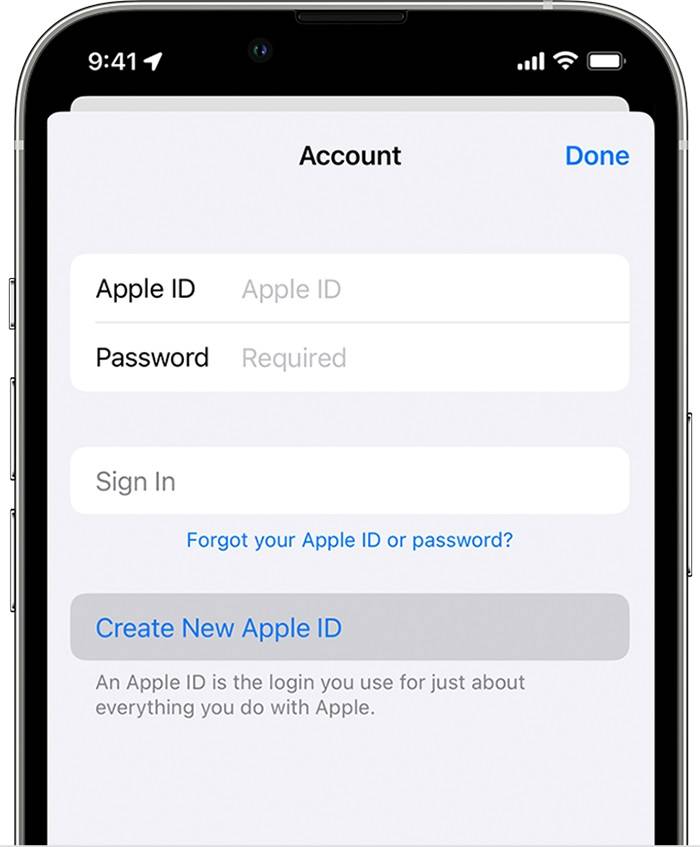
4. Follow the on-screen instructions to set your password, date of birth, region, phone number, payment method, and iCloud email address.
5. Verify your email address using the confirmation email sent to your inbox.
After completing email verification, your Apple ID will be created. You can use this iCloud email account to sign in and take advantage of iCloud storage features. If you already have an Apple ID, basic iCloud features like iCloud Photos and iCloud Drive are automatically set up and ready to use when you sign in.
How to create an iCloud account on a Mac?
It's also possible to create an Apple ID and iCloud account on macOS. If you want to view your iCloud account and preferences more comprehensively, it's a good idea to do it through your computer. To create an iCloud account on your Mac, follow these steps:
1. Go to the Apple menu and open System Settings (or System Preferences in older versions).2. Click the Sign In option located at the top of the left sidebar.
3. Click on the Create Apple ID option.
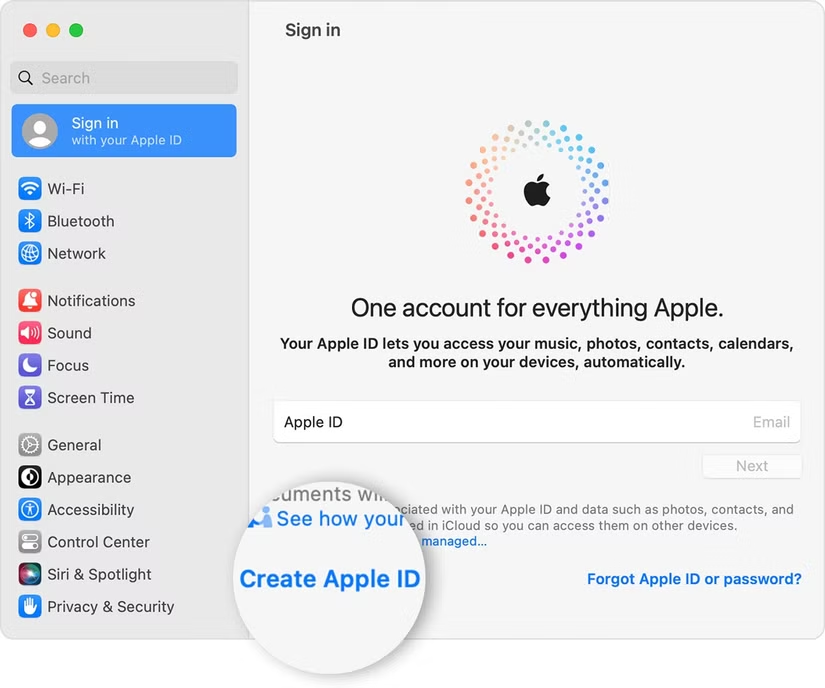
4. Follow the on-screen instructions to set your password, date of birth, region, phone number, payment method, and iCloud email address.
5. Verify your email address using the confirmation email sent to your inbox.
Your Apple ID is ready to use. With this Apple ID, you can access iCloud services on all your iOS devices.
How to create an iCloud account on a PC?
If you have devices from different brands, you can create an iCloud account on your Windows computer. To do this, make sure you have the latest version of iTunes for Windows installed on your computer.
1. When iTunes opens, go to Account > Sign In at the top of the pop-up window. 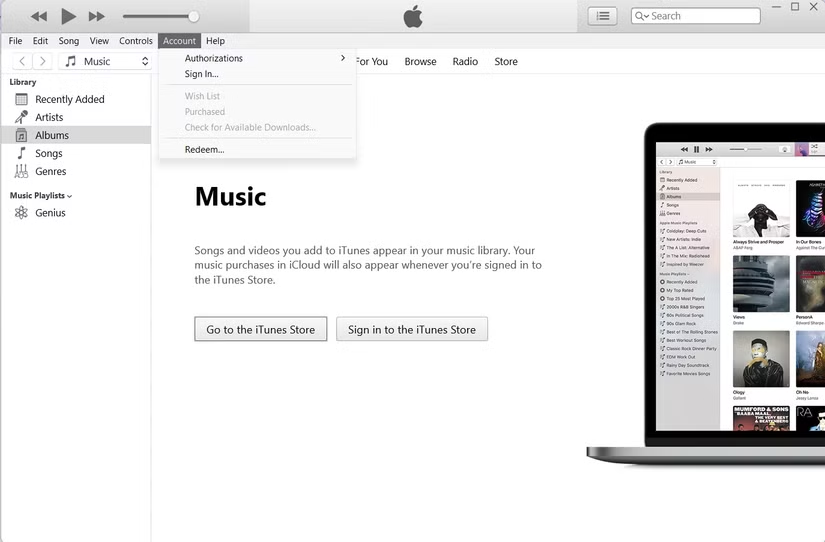
2. Click on the Create a new Apple ID option. 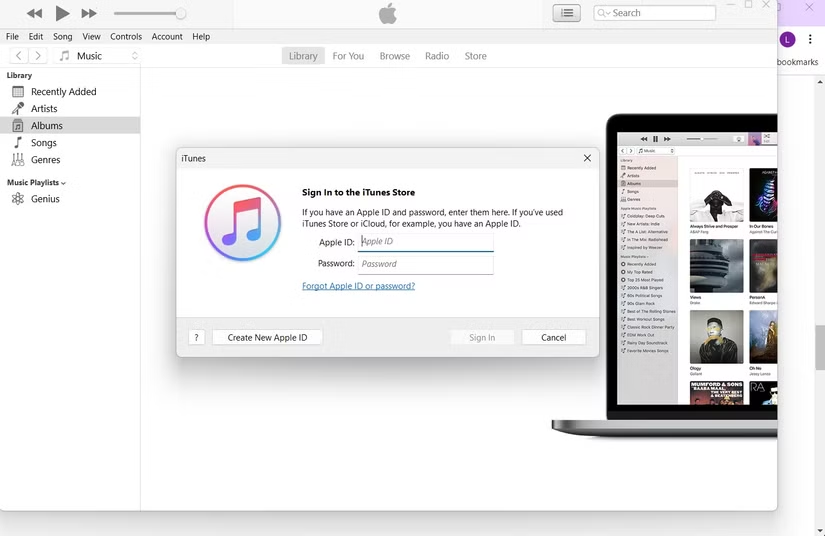
3. Follow the on-screen instructions to set your password, date of birth, region, phone number, payment method, and iCloud email address.
4. Verify your email address using the confirmation email sent to your inbox.
Once you confirm your email address, your new Apple ID is ready to use. You can use this Apple ID to sign in to iTunes and your iCloud account via iCloud.com from any device.
How to create an iCloud account online?
If you don't want to download iTunes or if you're using a Chromebook, you can use the web interface to create an iCloud account.
1. Go to iCloud.com and click Sign In . 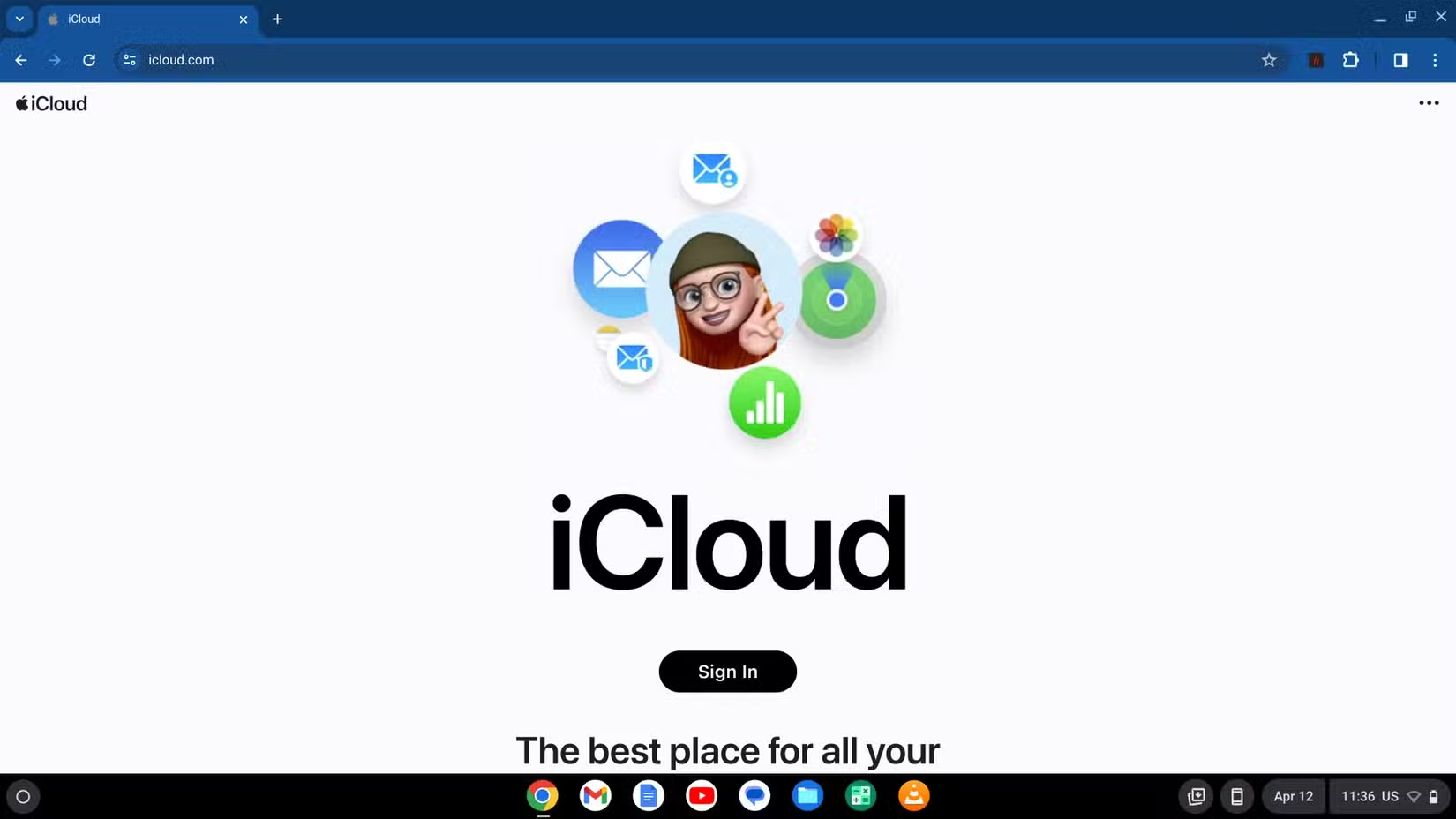
2. Begin the process by entering the email address and password associated with your Apple ID.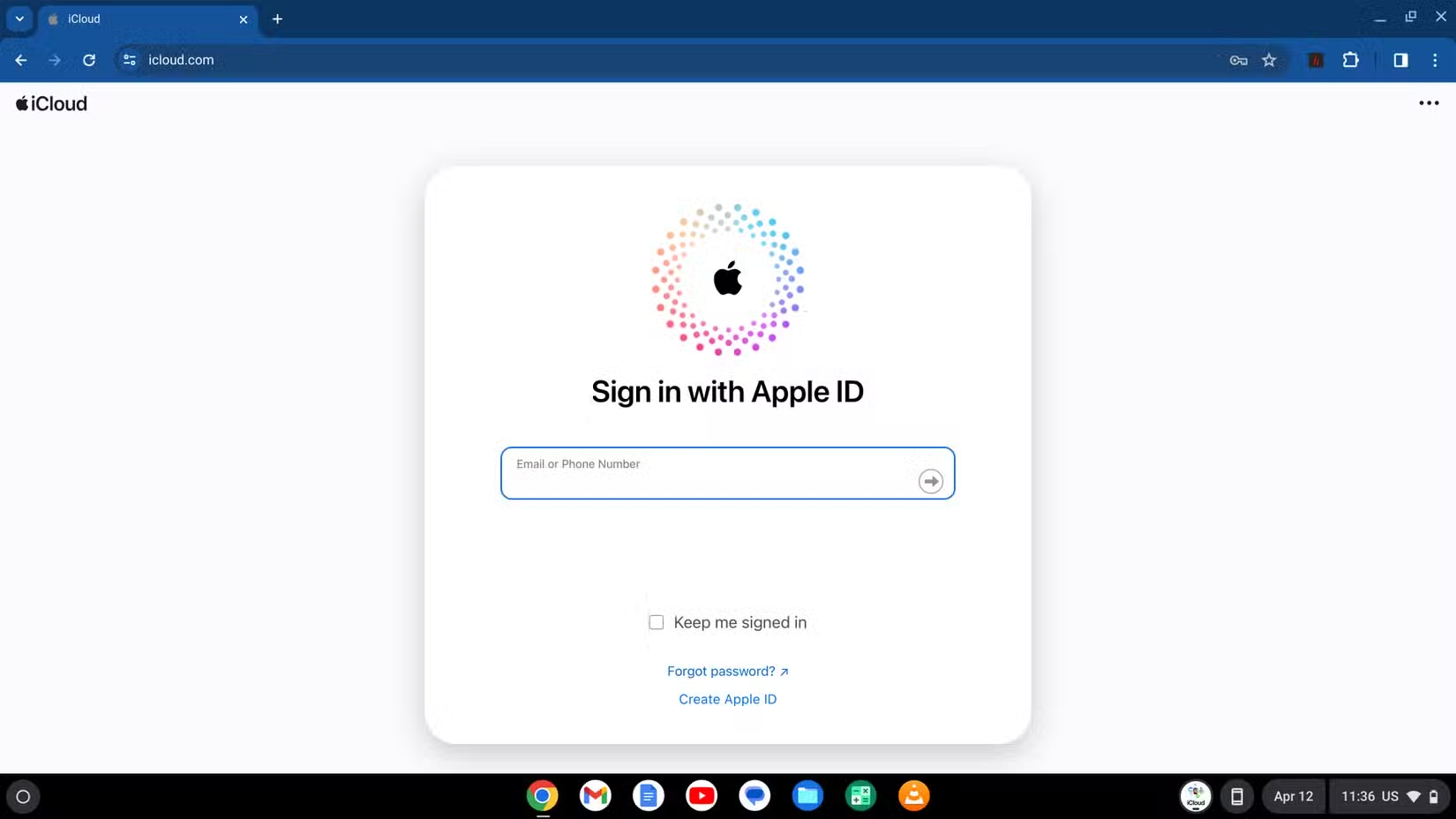
3. On the Security page, select More Options . Selecting Continue may put you in an endless loop of security questions. 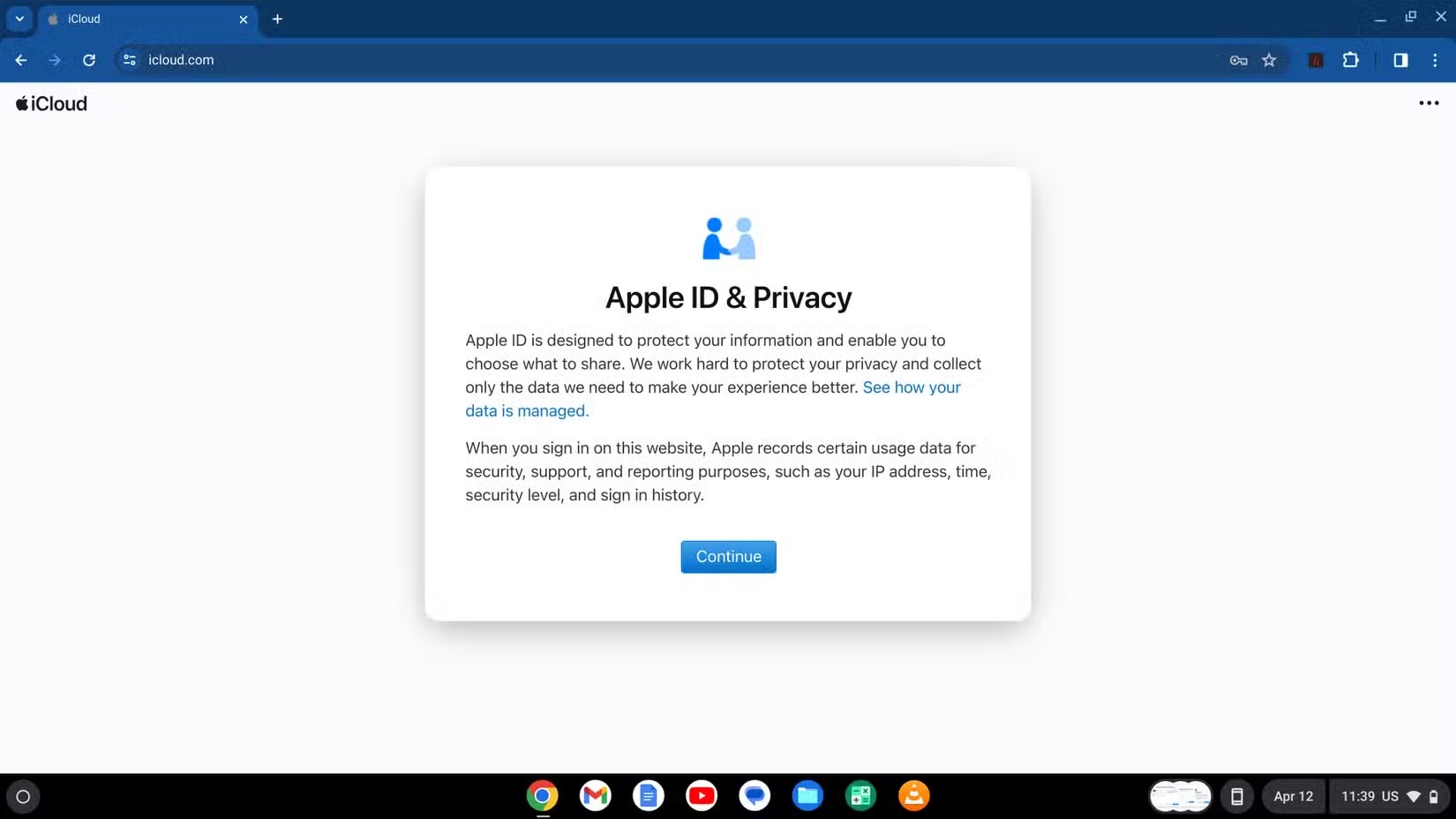
4. When prompted to upgrade account security, choose the "Update" option again to avoid this cycle. 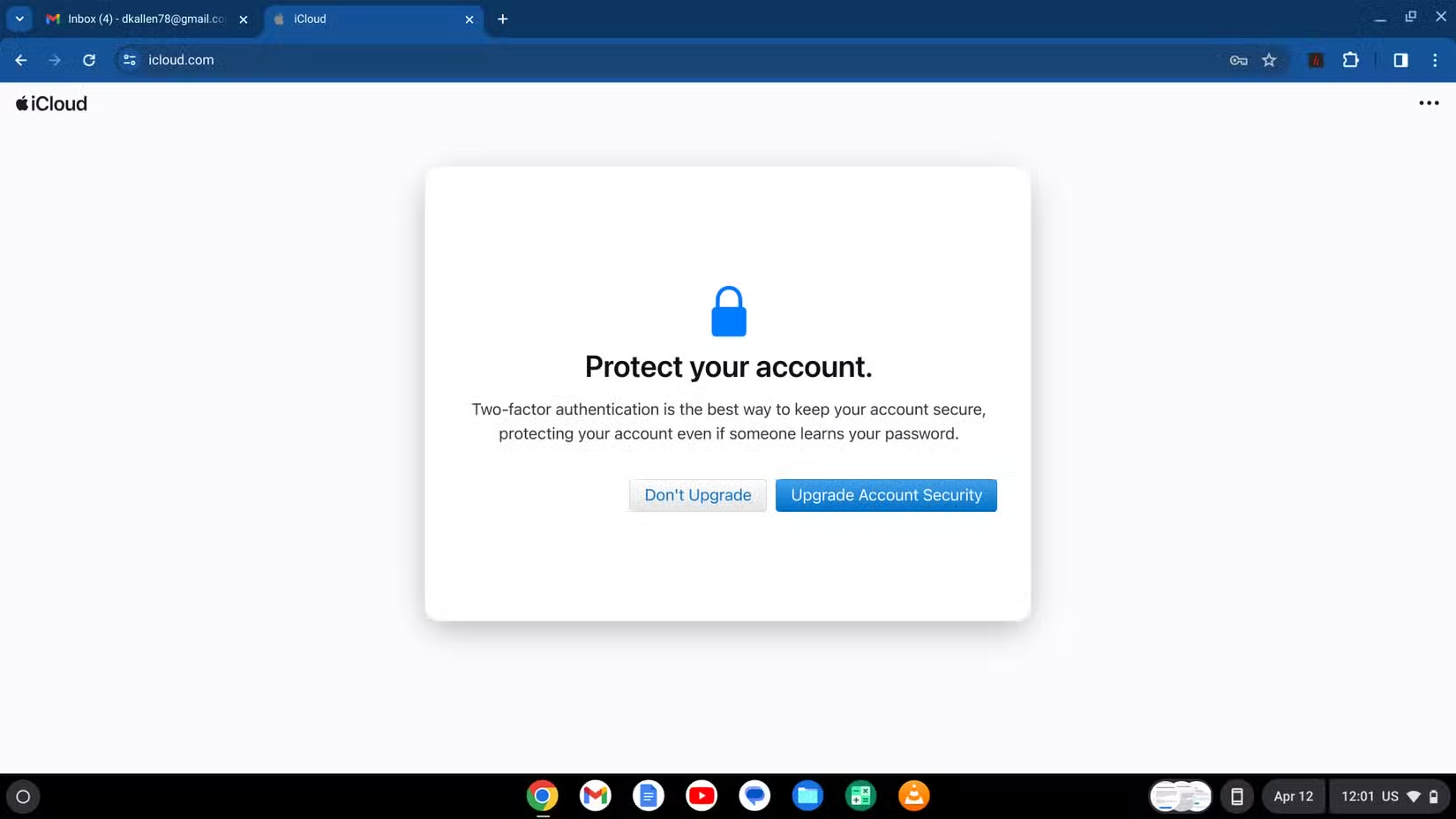
5. After accepting the terms and conditions, you are ready to use the iCloud cloud storage service.