



.png?revision=1764341863)


Using Windows on your macOS Devices (Windows App)
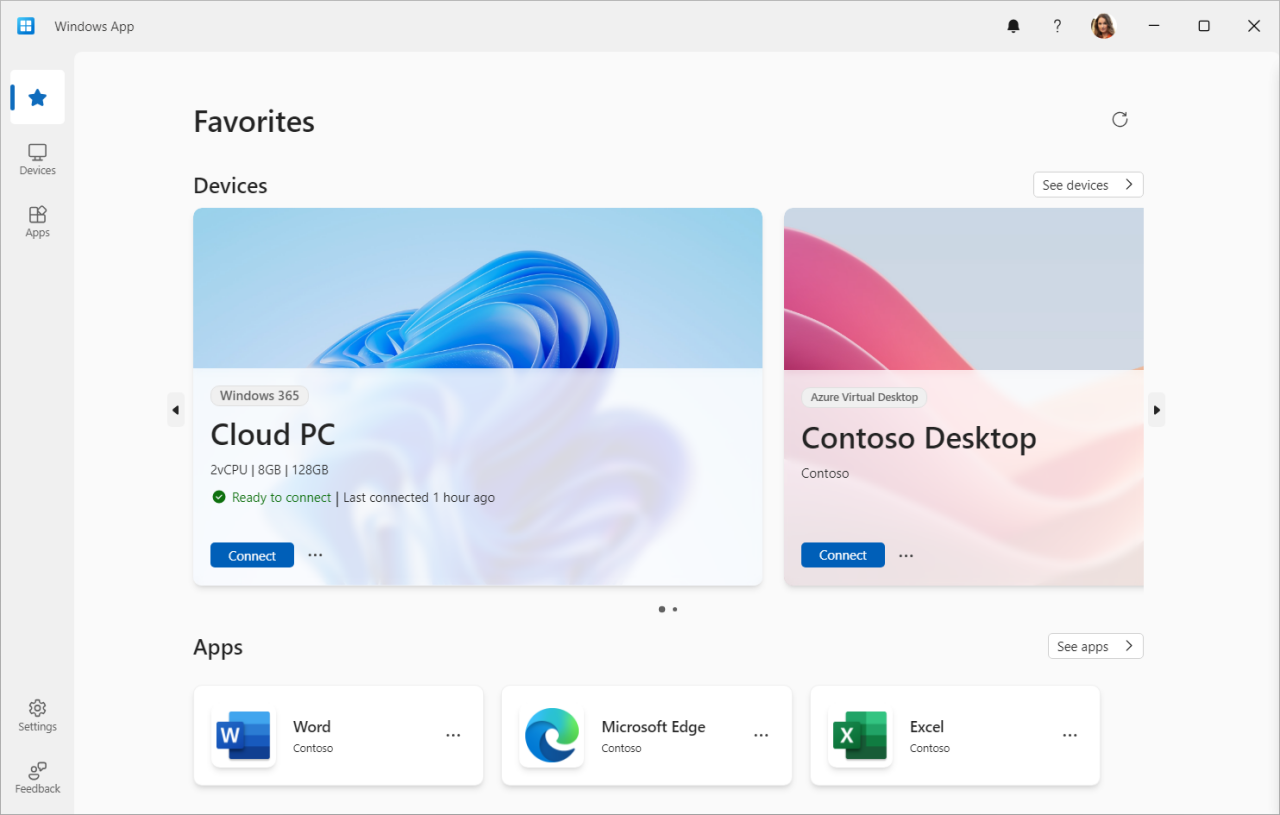
Microsoft is launching a new Windows app today for macOS, iOS, iPadOS, web browsers, Android devices, and even Windows PCs. This app acts as a central hub, publishing a copy of Windows from various sources such as Windows 365, Azure Virtual Desktop, Remote Desktop, and more.
Tested for almost a year, this unified application includes a customizable home screen, multi-monitor support, and USB routing features. This allows your local devices, such as webcams, storage devices, or printers, to be used as if they were directly connected to the cloud PC.
Which accounts can be used with the Windows App?
The Windows application is limited to Microsoft business and school accounts only. Essentially, it's intended to help Remote Desktop users on Windows and other operating systems transition to this new application. Microsoft has had similar applications for remote desktop connections on Windows for years; the Remote Desktop Connection application included with Windows 11 is another example. Such applications are quite useful for connecting from a personal laptop or PC to a work computer.
However, Microsoft doesn't currently appear to have plans to support consumer accounts for this new Windows application. Last year, it was revealed that Microsoft has a long-term goal of moving Windows entirely to the cloud. This goal is shaped by the aim of "providing more advanced AI-powered services and enabling users to fully utilize their digital experiences from anywhere."
Windows users can download the new Windows app from the Microsoft Store. The app is also available on the Apple App Store for macOS, iOS, and iPadOS.
How can I use the Windows app on my Macbook?
Download from the App Store
Open the Apple App Store : Click the "App Store" icon in the Dock or Finder.
Application Search: Type "Windows app" or the full name of the application into the search bar at the top and press Enter.
Find the application: Locate the relevant Windows application in the search results and click on it.
Download: On the app page, click the "Get" or "Download" button to start the download. Enter your Apple ID and password if required.
Setup
Install and Launch the Application
The application will be automatically installed once the download is complete. Your application should now appear in the "Applications" folder. Open the "Applications" folder, then double-click the Windows application you downloaded.
MacBook Pro and others MacBook Air products are available at Irismo Store , Cyprus's leading technology store ! You can browse our MacBook products.
With Apple silicon processors, you can easily connect to Windows apps . Now is the perfect time to own a MacBook! Increase your productivity with our devices equipped with the latest technology. Discover them now!