



.png?revision=1764341863)


How to recover deleted messages on iPhone?
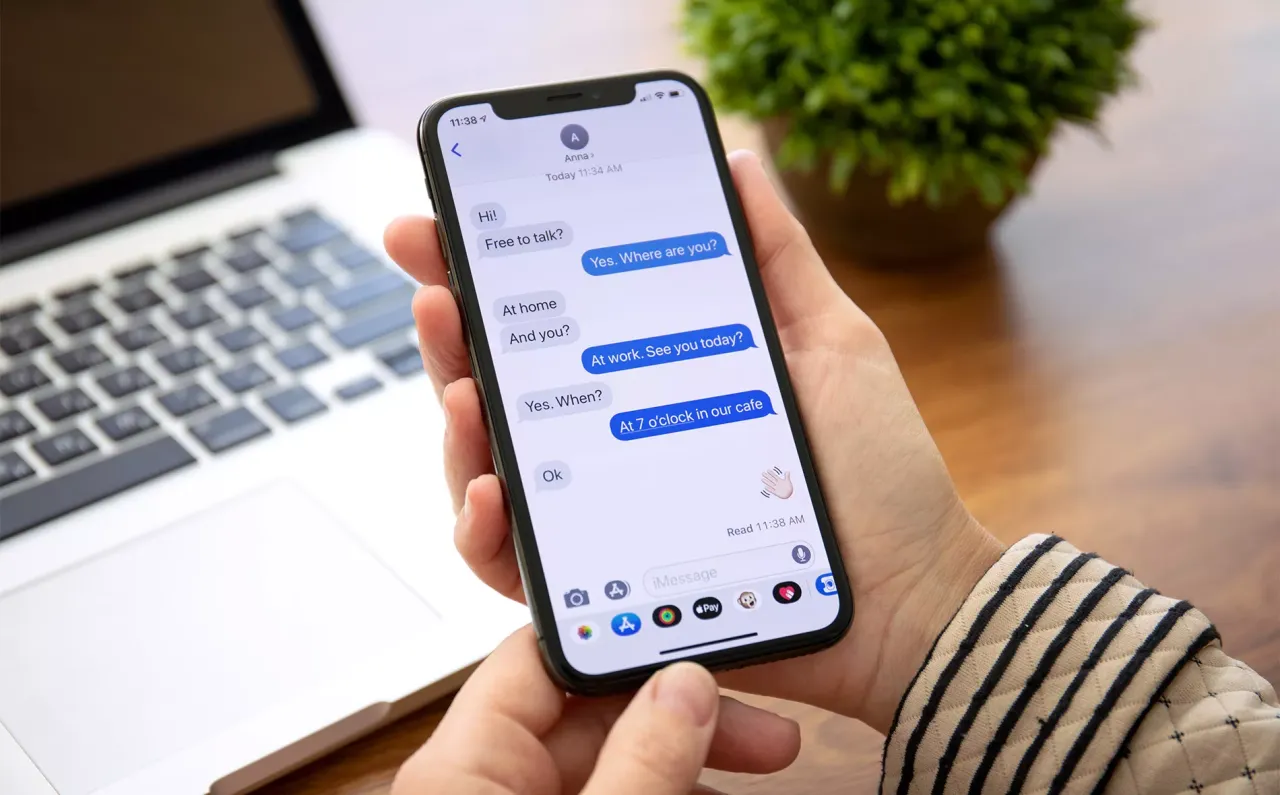
When deleting messages in bulk to free up space on your smartphone , you might sometimes accidentally delete an important address or valuable message. Don't worry. This article explains a few practical ways to recover deleted messages on your iPhone. 
Restoring Messages from the Recently Deleted Folder
Before resorting to cloud backups or third-party software, be sure to check the “Recently Deleted” folder in your iPhone's Messages app. This feature, introduced with iOS 16, allows you to easily recover messages you deleted in the last 30 days.
- Open the Messages app.
- Tap the “Edit” option in the upper left corner of the screen.
- Select "Show Recently Deleted" from the menu that opens.
- You will see a list of messages deleted in the last 30 days. Select the message you wish to restore.
- Move the message to your main message list by tapping the “Recover” button in the bottom right corner of the screen.
The only drawback of this method is that it doesn't show messages deleted more than 30 days ago. So check immediately! 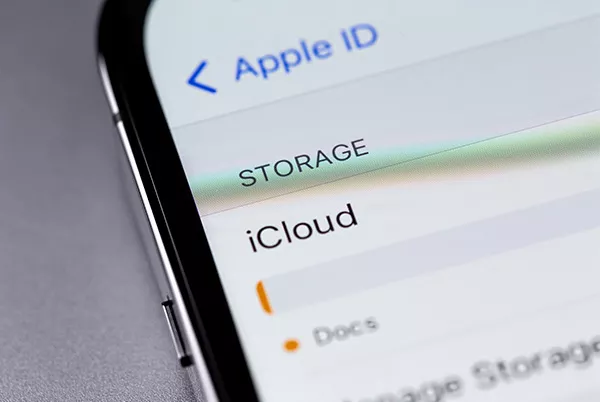
How to Restore Deleted Messages from iCloud Backup
Apple's iCloud storage service is quite useful for recovering data from your iPhone. If more than 30 days have passed since you deleted a message, you can access your messages again thanks to your iCloud backup. However, you must be using an iCloud backup for this to work.
You should be careful when following the steps below, as you will need to restore your iPhone to an iCloud backup taken before deleting the messages. This will result in all changes made after the backup being lost.
To recover messages from an iCloud backup:
- Open the Settings app and tap your name at the top of the screen.
- Go to the 'iCloud' option, then to the 'Manage Account Storage' section.
- Tap the 'Backups' option located in the middle of the screen.
- Select your device and check the date of the last backup before deleting the messages.
- Return to the main settings menu and select 'General'.
- Scroll down and tap 'Transfer or Reset iPhone', then select 'Erase All Content and Settings'.
- Your iPhone will restart and the setup process will begin. During setup, select the 'Restore from iCloud Backup' option.
- Make sure you select a backup from before the date you deleted the message. 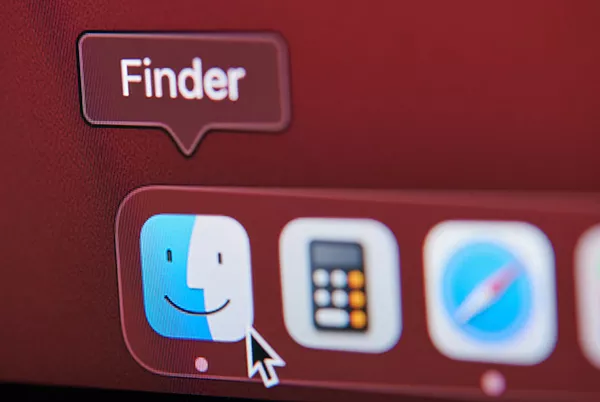
Restore Deleted Messages from iTunes or Finder Backup
If you have a Mac , you can back up your iPhone via Finder. You can also do this using iTunes on a PC or a Mac running macOS Mojave or older. This method is similar to an iCloud backup; you'll need to use a backup taken before the messages were deleted. You'll need to reset your iPhone by restoring that backup and then restore it. Remember that all data after the backup will be erased, so save any important files beforehand.
Steps to recover messages from a Finder or iTunes backup:
- Connect your iPhone to the Mac or PC where the backup is stored.
- If you're using a Mac, open Finder; if you're using a PC, open iTunes.
- In Finder, select your iPhone from the left-hand menu. In iTunes, click the iPhone icon in the upper left corner.
- Click the 'Restore Backup' option (in Finder, this option is located under the 'General' tab).
- After a few minutes, the existing data on your iPhone will be replaced with the data from the backup. Then you can see your old deleted messages by going into the Messages app. Note that this method only works if you haven't backed up your iPhone after deleting the messages. 
How to Restore Deleted Messages with iCloud Merge
Do you want to restore your messages via iCloud without completely resetting your iPhone? The iCloud Merge function can do this, but it may not always work. This is because iCloud does not back up SMS messages in some regions.
However, to try your luck, follow these steps:
- Log in to your iCloud account through a web browser.
- Click the 'Text Messages' icon (if you don't see it, proceed to the next method).
- Find the messages you want to retrieve in the list.
- Open the Settings app on your iPhone, tap your name, and then select 'iCloud'.
- Deactivate the 'Messages' option.
- In the window that opens, tap the 'Keep on my iPhone' option.
- Then, reactivate 'Messages' and tap the 'Merge' option.
- Your deleted messages will reappear in the Messages app after a few minutes.
Recovering Deleted Messages with Third-Party Software
Want to recover deleted messages without a backup? Fortunately, there are third-party software programs that can recover deleted messages on an iPhone without a backup. Most of these programs are paid and may not always be successful, but you can give them a try if you really want to recover important messages.
How do these programs work? Without going into technical details, in short; deleted messages remain in the iPhone 's internal memory until they are overwritten with new data. Popular programs like PhoneRescue can scan this space, access deleted messages, and recover them.
Message Recovery by Contacting Your Operator
As a last resort, you can contact your GSM operator. They may be able to find a record of some SMS messages you recently sent. However, this method only applies to SMS messages. iMessages are encrypted on your device and cannot be recovered by the operator.
This process may require you to go through some procedures, such as identity verification. Also, keep in mind that your carrier doesn't permanently store SMS messages (or may not store them at all). Therefore, this method may only work for messages that disappeared within the last few weeks.
Frequently Asked Questions
Can deleted messages be recovered on an iPhone?
Yes, you can recover deleted messages from the Recently Deleted folder in the Messages app. It's also possible to recover messages from an old iCloud backup or using some third-party software.
How to recover deleted WhatsApp messages on iPhone?
To recover your important WhatsApp chats, follow these steps:
- Check your WhatsApp settings to see if you have an iCloud backup.
- If you have a recent backup, uninstall WhatsApp from your iPhone.
- Reinstall WhatsApp from the App Store.
- Open WhatsApp and log in with your phone number.
- Once a backup is found, tap the "Restore Chat History" option.
If you don't have a backup, you'll need to use data recovery programs like PhoneRescue or Disk Drill.
Do you have any other questions?
We hope these methods have helped you recover deleted messages on your iPhone. For more iPhone tips and tricks, you can check out the rest of the Irismo Store knowledge base.